September 17, 2026
Setting up VoiceInk: My Mac dictation with the MX Master 4
My VoiceInk setup with local Parakeet V3, optional Groq enhancement, a Hybrid shortcut, and an MX Master mouse binding.
Hand on the mouse, thumb on the button, thoughts spoken aloud: seconds later, usable text appears in the field where the cursor was just blinking. That is how I use VoiceInk on my Mac. My hand stays on the mouse. I can speak a longer instruction instead of typing it sentence by sentence. That is why VoiceInk has become a permanent part of my setup.
Affiliate disclosure: The following VoiceInk link, marked as an affiliate link, may earn me a commission. The price stays the same. Here I describe my setup, including the details that deserve a closer look.
View VoiceInk (affiliate link)
This guide is current as of September 17, 2026. It shows VoiceInk 2.13 on my Mac. The screenshots contain settings only—no private dictations, account details, or license keys.
The key point first: dictation and enhancement are separate
My default mode is called “Dictation.” It does not use AI post-processing. I speak, VoiceInk transcribes locally, and it inserts the text. That is often exactly right for notes, short replies, and rough drafts. After all, an unpolished sentence can capture an intention without a model changing its tone, order, or details.
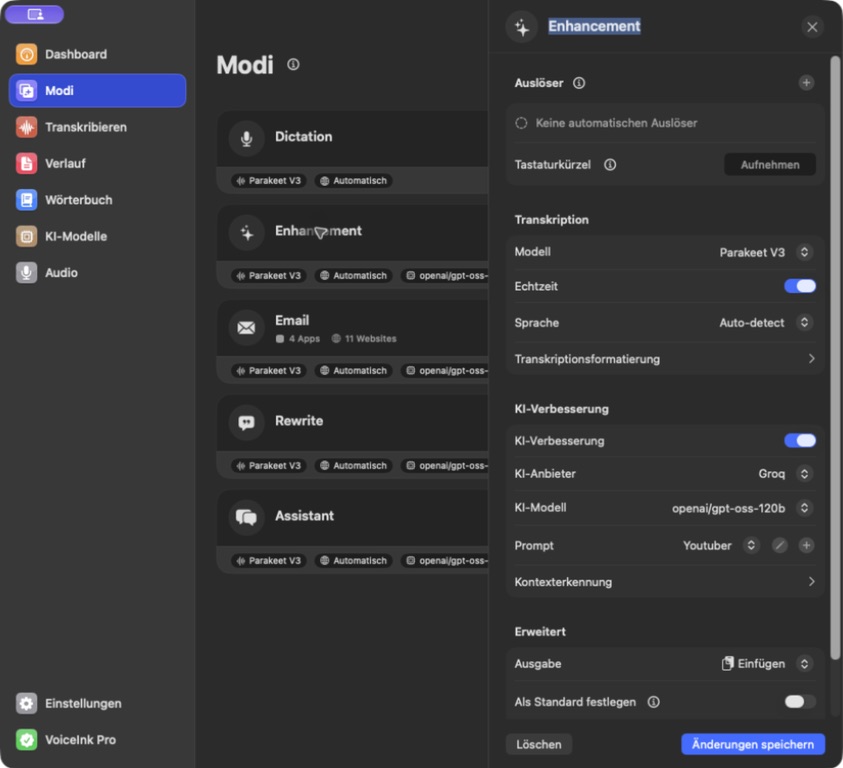
I also have an “Enhancement” mode. It is a deliberate second step. Only when I select this mode does the transcribed text go to a language model, which cleans it up or structures it using a prompt. This creates a distinction that is easy to overlook in dictation apps: not every VoiceInk dictation is automatically revised. Whether that happens depends on the active mode.
Plain dictation is often enough for a quick note. For longer messages, the extra cleanup helps: self-corrections disappear, sentences gain punctuation, and separate thoughts become paragraphs. The important thing is to choose the right mode before recording.
My current choice of models
For local transcription, I have selected Parakeet V3 in VoiceInk. The model runs on the Mac. This makes it my starting point for dictation where the audio recording should not go to a cloud transcription service. Alongside Parakeet, VoiceInk supports other local options such as Whisper and Apple Speech; the best fit depends on the language, the Mac, and the desired response time. Parakeet V3 is a reasonable starting point for German; for difficult technical terms, it is worth comparing models using your own examples.
In Enhancement mode, I use Groq with openai/gpt-oss-120b. Groq and Grok are not the same: Groq is the provider here, while Grok belongs to xAI.
This combination means that recordings for my default dictation are transcribed locally. The finished text is sent to the selected provider only when I use Enhancement. VoiceInk describes this separation in its terms of service. You need your own API key, and the provider's charges are separate from the app purchase. According to VoiceInk, the key itself is stored in the macOS Keychain. The app license and usage of the API provider are billed separately.
An option I have not used yet: local Refine V1
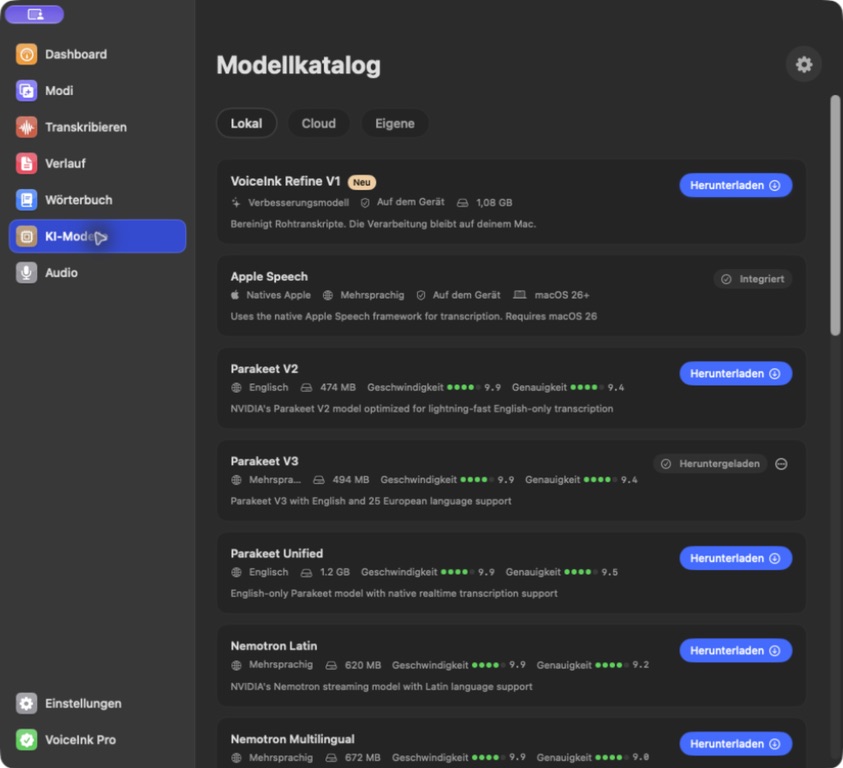
A new local model called “Refine V1” also appears in the app, but I have not installed it. It can clean up text locally, although the official model card documents English support, not German. It therefore remains a candidate for testing rather than an upgrade. Parakeet V3 is the pragmatic local foundation. Cohere Transcribe is a slower candidate to compare for difficult German dictations; VoiceInk introduced experimental support in version 2.11. Release notes.
The current VoiceInk recommendation lists Qwen 3.8 27B on Groq for Enhancement. I am keeping my GPT-OSS setup anyway: Qwen is in preview on Groq and listed at $0.80 per million input tokens and $4 per million output tokens; GPT-OSS 120B is listed at $0.15 and $0.60 respectively. Groq models and pricing. An A/B test using “Retry Last Transcription” tells you more than a model name.
Setting up VoiceInk: my setup in eight steps
- Install VoiceInk: Download the app, drag it into Applications, launch it, and grant microphone and Accessibility permissions. The official installation guide explains why these permissions are needed for recording, the global shortcut, and inserting text.
- Download a local model: Under AI Models → Local download Parakeet V3. Then, under Modes → Dictation select this model and leave AI enhancement disabled for plain dictation mode. Dictation is marked as the default in my setup.
- Protect German words: Under AI Models → Gear icon → Transcription check the “Remove Filler Words” list. For German dictation, “um” must not be removed indiscriminately—otherwise “um 16 Uhr” (“at 4 p.m.”) might become “16 Uhr” (“4 p.m.”).
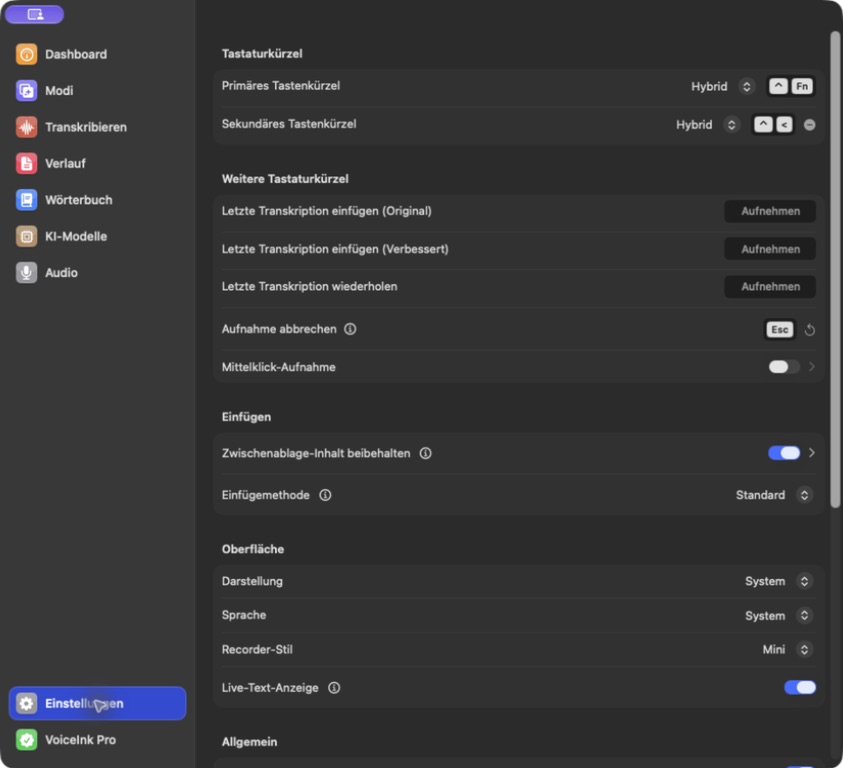
- Set up the shortcut: Under Settings → Keyboard Shortcuts set the second global shortcut to
Control + <and “Hybrid.” - Assign the mouse button: In Logi Options+, open the MX Master 4 for Mac, go to the global settings, select the lower-left thumb area, and assign the keyboard shortcut
Control + <. - Connect Groq: Under AI Models → Cloud select Groq as the provider, enter your own API key, and verify it. Do not copy the key into screenshots, notes, or messages. VoiceInk documents the provider setup.
- Create an Enhancement mode: Select Groq and
openai/gpt-oss-120b, add a custom prompt using the plus button, paste in the original prompt linked below, and give it a name such as “Youtuber.” In the prompt editor, turn off System Template because this prompt already contains its complete system rules. Then save it, actually select it in Enhancement mode, and save the mode as well. - Test in an empty field first: Press briefly to start/stop; hold for push-to-talk. Only then use it in email or chat. Enhancement mode remains a deliberate choice; Dictation remains the local default.
My global shortcut and why Hybrid works for me
My secondary global shortcut is set to Control + < in Hybrid mode. According to the VoiceInk shortcut documentation, Hybrid combines two gestures: a brief press starts or stops recording; holding the combination for at least about half a second keeps recording until you release it. This is useful because quick thoughts and longer dictations do not require two different keyboard shortcuts.
The middle mouse button does not start recording in my setup. That option is turned off. This prevents a scroll-wheel click from accidentally activating the microphone. VoiceInk can enable this binding with an adjustable delay, but a feature is not automatically useful simply because it exists.
Using the mouse as a trigger: how I set it up
I use an MX Master 4 for Mac. In the global settings in Logi Options+, I have assigned the lower-left thumb area to Control + <. Pressing it triggers the second VoiceInk shortcut without my having to reach for the keyboard. Logitech lets you assign keyboard shortcuts to mouse actions in Options+. Logitech: Options+ and button customization.
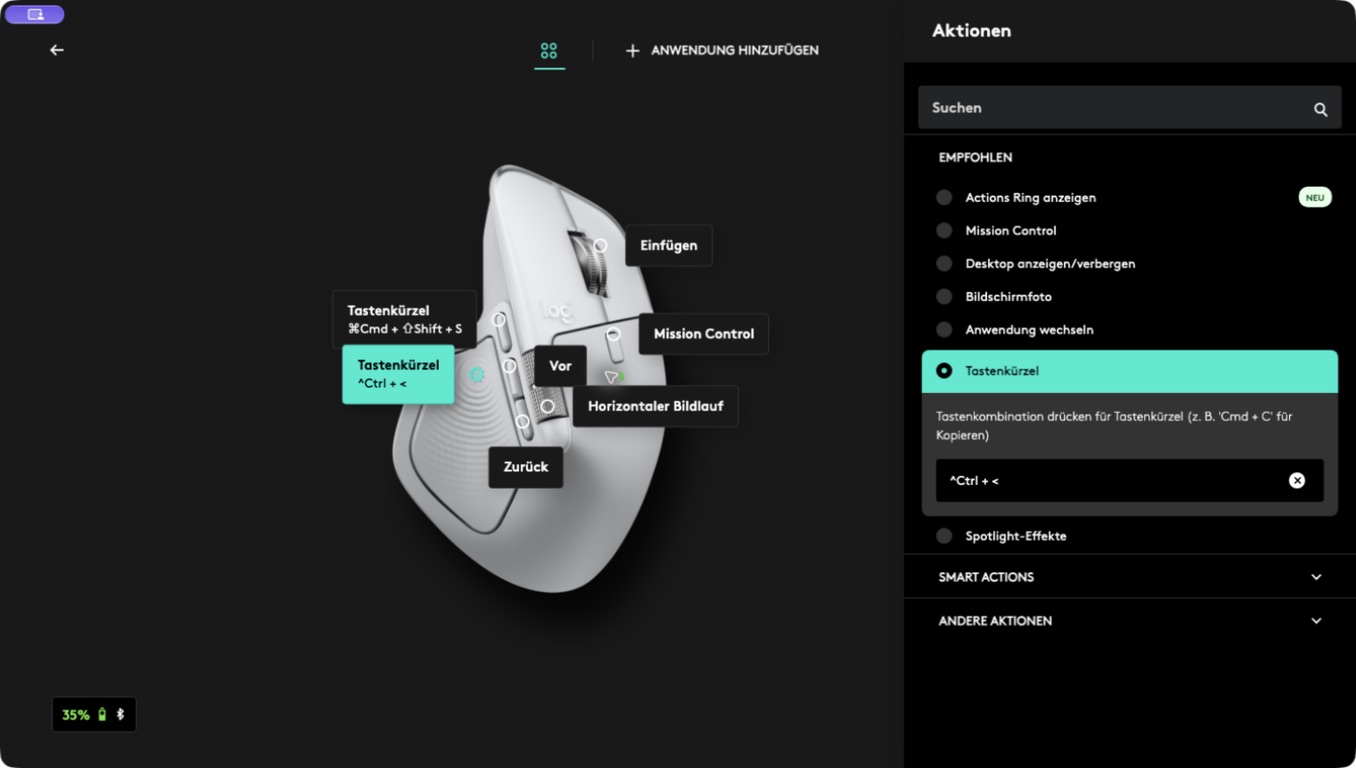
Then test in an empty text field: press briefly, speak, and press briefly again. In the second test, hold the button, speak, and release it. Check whether the mouse software passes through a held button in the same way as the keyboard; start/stop with a brief press is the first test. This lets you spot a conflict between the mouse software and VoiceInk without creating a real message.
What I took from David Rau's guide
For the basic idea, I found David Rau's video “I now TALK to my computer (without a subscription)” from April 9, 2026 helpful. The video guide shows the same sensible setup: assign a hotkey to a mouse button, work locally with Parakeet, enable Enhancement selectively, and maintain Vocabulary and Word Replacements for proper names, technical terms, and recurring spellings. The following steps adapt that workflow to the current interface.
In the video, David Rau recommends turning off “Remove Filler Words.” In my VoiceInk 2.13 interface, there is an editable list instead: under AI Models → Gear icon → Transcription you will find a filler-word list. It included “um”; I specifically removed that entry. The remaining filler sounds stay in the list. This preserves the German word “um” without disabling all filler-word handling. The original prompt linked by the video creator is in his download folder.
My prompt: clean up the text without rewriting my voice
In VoiceInk, I now have the “Youtuber” prompt selected and saved in Enhancement mode, with System Template switched off. The prompt itself has not been changed. Its rules can be summarized as follows: preserve the original voice and English loanwords, do not hastily remove German function words such as “um,” do not answer questions independently, and do not add new facts. An illustrative editing prompt might read: “Format the dictation for readability. Preserve its meaning, tone, and proper names. Remove only clearly meaningless filler sounds, add no information, and output only the revised text.”
The current interface puts this setting under Modes. If you are following the older video, you can therefore translate its “Enhancement” step into the following: create or open a custom Enhancement mode, select the provider and model, then assign the “Youtuber” prompt and turn off System Template. The mode is only used when you select it. “Dictation” remains my default mode without cloud processing.
How to check whether the prompt works correctly
A deliberately invented test dictation: “Send the draft on Tuesday, I mean Wednesday. And please leave the workflow as it is.” A suitable result would be: “Send the draft on Wednesday. And please leave the workflow as it is.” This is a target output, not a measured model result. What matters is that Tuesday disappears, Wednesday stays, and “workflow” is not translated without being asked when dictating in German.
Then dictate “Can you send me the file tomorrow?” The output should contain that question—not a reply such as “Of course, I'll do that.” This boundary between text correction and chatbot behavior is precisely what makes the prompt useful. If technical terms are repeatedly misspelled, add them under Dictionary → Vocabulary; recurring incorrect forms can be replaced specifically under Word Replacements.
What stays local—and what does not
Local transcription does not automatically protect every subsequent step. As soon as Enhancement runs through Groq, the text leaves the Mac. Screen context, selection, and clipboard access should only be enabled when they are actually needed. An API key can incur ongoing charges, and cloud providers can change their prices or models. Even the best dictation app cannot reliably understand an unclear recording; the microphone, room, and technical vocabulary still matter.
VoiceInk 2.13 (Build 213) is already installed on my Mac; no update is pending. According to the price list, VoiceInk costs a one-time $25 for one Mac, $39 for two, or $49 for three Macs, each with lifetime updates according to the developer. This is attractive for a Mac-centered workflow. However, it is not a flat-rate price for any amount of cloud AI. For my use, the freedom to choose is what works: dictate locally and enable Enhancement only when it actually helps.
Cost comparison
| Product | Monthly | Annual commitment | One-time purchase |
|---|---|---|---|
| VoiceInk | – | – | $25 / 1 Mac, $39 / 2, $49 / 3 |
| Wispr Flow Pro | $15 | $144/year | – |
| Superwhisper Pro | $8.49 | $84.99/year | $249.99 |
| Aqua Pro | $10 | $96/year | – |
All prices in USD, plus any applicable taxes. Sources: Wispr Flow, Superwhisper, Aqua Voice. Apple Dictation costs nothing beyond the Mac itself and is worth trying before buying another app. You can find the detailed comparison in VoiceInk alternatives compared.
If you currently type every longer thought, start by trying this simple sequence: click a text field, press the mouse button, speak, stop, and proofread. For me, this direct connection between the mouse and dictation is the real benefit. Try VoiceInk (affiliate link).
What about a Windows PC? These alternatives do not require an app subscription
The setup shown above remains a Mac setup. VoiceInk cannot be installed on a Windows mini PC. However, you can reproduce the workflow using other software: select a microphone, assign a recording shortcut, and have the finished text inserted into the active field. I would start by trying the following programs; I have not tested them myself on Windows yet.
| Windows app | Price without an app subscription | Free trial | Assessment |
|---|---|---|---|
| Speakly | US$20 one-time (introductory offer; regular price US$45 according to the pricing page) | 7 days | A candidate for my workflow with dictation and a custom correction prompt. |
| Lazytype Personal | €25 one-time | 14 days | An alternative with your own Groq access and an offline mode. |
| Voicetypr | US$39 / 1 device; US$69 / 2 devices; US$99 / 4 devices, all one-time purchases | 3 days | Local speech recognition and optional text cleanup using your own API accounts. |
| Handy | Free, open source | Permanently free | A free starting point for dictation using a hotkey. |
Windows alternatives: features compared directly
| Feature | Speakly | Lazytype Personal | Voicetypr | Handy |
|---|---|---|---|---|
| Windows version | Yes | Yes | Yes | Yes |
| Local offline transcription | Whisper; CPU-only on Windows | whisper.cpp | Local models, including Whisper | Local speech recognition |
| Recording by keyboard shortcut | Hold or start/stop | Hotkeys and voice macros | Push-to-talk or toggle | Push-to-talk or start/stop |
| AI text cleanup | Optional, custom prompts | AI cleanup in the Personal plan | Optional with your own API key | Not assessed here |
| Your own cloud account | Groq and OpenAI, among others | Groq, among others | Optional cloud transcription and AI cleanup | Not assessed here |
| Usable without an app subscription | Yes, one-time purchase | Yes, Personal one-time purchase | Yes, one-time purchase | Yes, free |
Features as of September 17, 2026, based on developer documentation. “Not assessed here” does not mean a feature has been confirmed absent. Offline refers to transcription after downloading the model; optional cloud post-processing requires internet access and may incur additional charges. Additional feature sources: Voicetypr and Handy.
Prices as of September 17, 2026. Developer prices are shown in their original currencies; check possible taxes and currency conversion when purchasing. Sources: Speakly pricing, Lazytype Personal, Voicetypr licenses and Handy.
Speakly would be my first candidate for the next trial: its custom prompts let you define post-processing rules. I would first check my existing prompt with the same test dictations before using it for real messages. VoiceInk's settings and Hybrid mode do not automatically transfer one-to-one.
For a Windows setup, I would connect a USB microphone, select it in the dictation app, and test start/stop on the keyboard first. A configurable mouse button can then send the same shortcut. Whether holding the button also works depends on the app and mouse software. My Mac screenshots above therefore do not show a tested Windows configuration.
A one-time purchase does not mean unlimited cloud AI: The license pays for the app. Local transcription does not generate an API bill. However, if you use an external provider for transcription or text enhancement, its quotas and prices apply. A free Groq allowance is not a promise of permanently unlimited use.
Speakly has a specific limitation on Windows: local Whisper recognition currently runs on the CPU, without CUDA or Vulkan acceleration. A large model name therefore does not guarantee a short wait. Test several German dictations on your own PC before purchasing. Source: Speakly, local models.
My setup on the go: VoiceInk for iPhone compared with Spokenly and Sprecho
On the Mac, I trigger dictation with the mouse. On the iPhone, I would use a voice keyboard instead. The following apps are candidates for that next step; the recommendations are based on documented features rather than a phone setup I have already tested.
| Feature | VoiceInk for iPhone | Spokenly | Sprecho |
|---|---|---|---|
| Cost without a subscription | Free download; possible unlock fee not conclusively verified | €0 for unlimited local dictation | Free: 2,000 words/week; Lifetime currently €355.81 including VAT |
| Optional subscription | No verified iOS subscription price | Pro: US$99.99/year (equivalent to US$8.33/month) | Web Pro: €131.88/year (equivalent to €10.99/month) |
| Offline transcription | Yes, local models | Yes, local Parakeet | No; internet required |
| Dictation through an iPhone keyboard | Keyboard extension | Dedicated keyboard | Dedicated keyboard |
| Text post-processing | Custom prompts and optional cloud models | Your own LLM key or Pro; check local options for your device | AI formatting, grammar, and filler-word handling |
| Cloud processing | Optional, through the selected API provider | Optional, through the selected provider or Pro | On its own servers in Germany, according to the provider |
| Especially interesting for | Existing VoiceInk users with custom prompts | Free offline dictation | Dictation with integrated text cleanup without setting up your own API access |
How I would test the iPhone setup
I would start with Spokenly's local model and dictate a longer message in Notes. Then I would try VoiceInk with my existing correction prompt. The fact that the prompt works on the Mac does not guarantee the same result with a different model on the phone.
Sprecho would be my comparison option for a workflow without configuring my own API access: speak, let it clean up the text, and review the result. The free weekly allowance is enough for an initial trial. Only then would I decide whether the cloud processing and substantially higher lifetime price suit me for longer-term use.
After installation, enable the relevant keyboard under Settings → General → Keyboard → Keyboards and select it using the globe key. Test in Notes first. Then check your most important apps, and only afterward test the optional AI post-processing. Private messages and API keys do not belong in screenshots.
The information comes from developer documentation and App Store listings; we have not conducted our own iPhone comparison test. “Offline” means transcription after downloading the model. Additional cloud-based text correction requires internet access and may incur API charges. Third-party keyboards cannot be used in every iOS input field.
Reading the prices correctly: Sprecho's lifetime offer is limited; €299 before tax equals €355.81 with 19% VAT. Before buying, confirm that it is valid for your own iPhone account. The German App Store also lists in-app purchases at €14.99 and €155.99, whose durations are not clearly identified in the publicly visible listing. Do not therefore equate web prices with App Store prices. The purchase channel can also make a difference for Spokenly; the table shows the annual web price in US dollars, with possible taxes added where applicable.
VoiceInk licenses are separate: A Mac license does not activate the iPhone app. A free download alone does not establish that the full version is permanently free. Details are in VoiceInk's licensing notice.
Sources: VoiceInk on the App Store, Spokenly for iPhone, Spokenly pricing, Sprecho pricing, Sprecho Mobile and Sprecho on the German App Store.
Questions about setting up VoiceInk on the Mac
Tap a question to open the answer. Several answers can stay open at the same time.
How do I start VoiceInk with the MX Master 4?
In Logi Options+, I assigned the same keyboard combination to the thumb area as in VoiceInk: Control + <. In VoiceInk, it is configured as the second global shortcut. Test the keyboard combination first, then the mouse binding in an empty text field.
What does Hybrid mode do when recording?
In the VoiceInk setup described here, a brief keypress starts and stops recording. When held longer, the shortcut acts as push-to-talk: speak and release to finish. You need to test separately whether the mouse software correctly passes through the held button.
Do I need the exact MX Master 4 for Mac model?
What matters is that your mouse software can assign the required keyboard shortcut to a button. The guide and screenshots show my MX Master 4 for Mac. Button assignments, hold behavior, and software may differ with other mice.
Why do I start with Parakeet V3?
Parakeet V3 is selected in my local Dictation mode. It lets me work without cloud transcription. For technical terms, I would first use my own test dictations and the dictionary rather than switch solely because of a newer model name.
Do I need Groq for German dictation?
No. My normal Dictation mode transcribes locally. Groq is only used in the separate Enhancement mode when I have a language model post-process the finished text.
Are Groq and Grok the same?
No. Groq is the provider through which my Enhancement mode uses the openai/gpt-oss-120b model. Grok belongs to xAI. The similar-sounding names refer to different offerings.
Why is the word “um” being removed from my speech?
Check the list for removing filler words. My configuration included “um.” That is a problem for German phrases such as “um 16 Uhr” (“at 4 p.m.”). I therefore removed that entry rather than turn off all filler-word rules.
Why is my custom prompt not being applied?
First check that you are using Enhancement mode rather than Dictation. Then verify that the correct prompt is selected and saved in the mode. System Template is switched off for the original prompt linked here because that prompt contains its own system rules.
How do I prevent the AI from answering a dictated question?
The correction prompt should only edit the spoken text and should not answer questions. Test this with “Can you send me the file tomorrow?” The question must be output as a question; a reply such as “Of course” would be an unwanted change.
What can I do if text ends up in the wrong field?
Click the intended input field before recording and first test with a short, harmless sentence. If problems recur, check the permissions and output mode. Enable additional automation features one at a time so that you can trace the cause.
What data leaves the Mac in my setup?
In local Dictation mode, the recording is transcribed on the Mac. With Enhancement through Groq, the finished text is sent to the provider. Additional screen, selection, or clipboard context may include further content if you enable those features.
Can I transfer my workflow to a Windows mini PC?
The basic workflow, yes: select a microphone, trigger the shortcut, speak, and insert the text. VoiceInk itself cannot be installed there as a Windows app. The alternatives listed above must be configured separately; my Mac setup is not evidence of their speed or mouse compatibility.
How would I set up dictation on the iPhone?
I would first test VoiceInk or Spokenly with its respective iOS keyboard in Notes. Sprecho is another option with cloud processing. On the phone, the voice keyboard replaces my mouse shortcut; VoiceInk's Mac license does not automatically apply there.
Can I use the same correction prompt on Mac and iPhone?
The prompt text can be a starting point, provided the selected app supports custom prompts. However, the result also depends on the model and other settings. Use identical sample sentences to check whether names, appointments, and self-corrections are handled the same way on both devices.
What ongoing costs can arise despite a one-time purchase?
The VoiceInk Mac license and my API provider are billed separately. Local transcription does not require a paid cloud request. Optional cloud correction is subject to the provider's quotas and prices; a free allowance is no guarantee of permanently unlimited use.